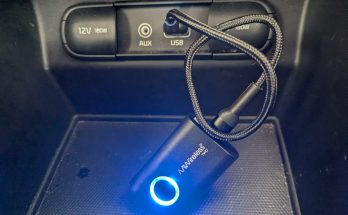
An MP3 player, in 2026? AMFM Technologies bravely says YES – we need one, re-imagined. Thus, the BOLD MINI music player was born.
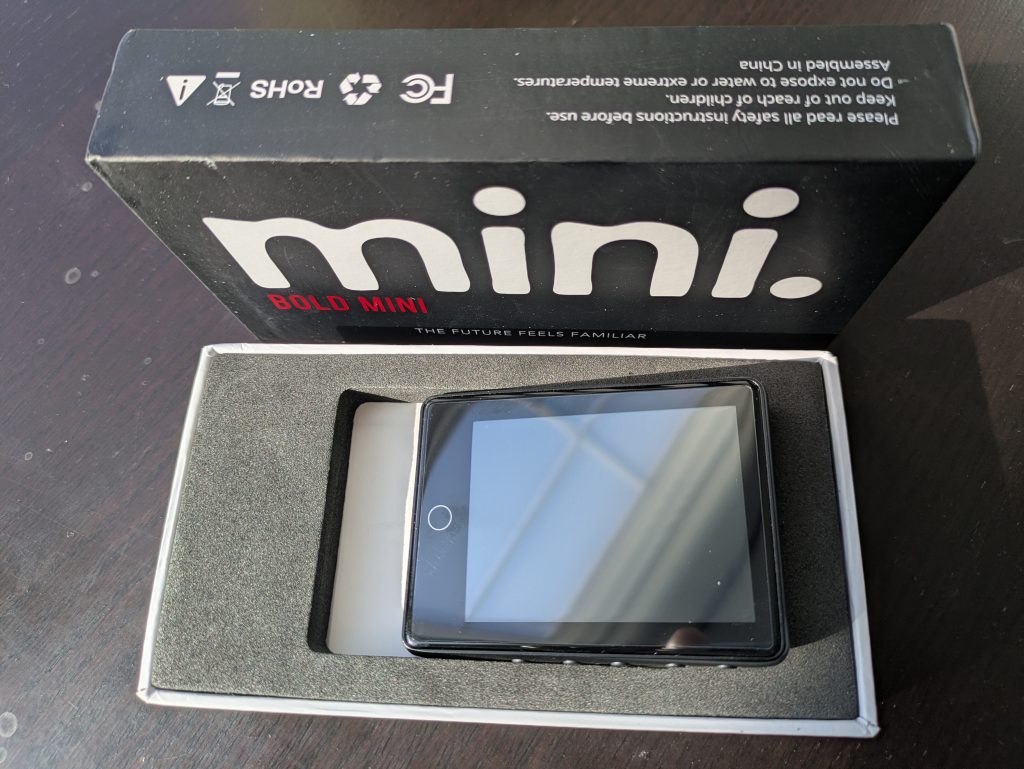
The BOLD MINI review: What is it?
We were intrigued! So what is the BOLD MINI and how did they re-imagine a modern MP3 player? According to AMFM, it is:
A modern classic that brings back the feeling of music you can hold. Just you, your music, and the moment.
Unlike devices that depend on Wi-Fi, subscriptions, or algorithm-driven apps, the BOLD MINI™ gives you total control of your music anytime, anywhere. No buffering. No ads. No monthly fees. Just pure, offline playback designed for freedom, focus, and authentic connection. No Clouds. No Algorithms. No Distractions.
The BOLD MINI™ because listening should feel human again.
What we’re looking at here is a music player that doesn’t require internet connectivity and one without subscriptions. This takes me back to the 2000’s, when you had to connect an MP3 device to your computer, and then load MP3s onto it, allowing for music playback wherever you went.
I remember buying a Creative Nomad IIc at Fry’s Electronics in Phoenix, AZ in ~2001! I still have fond memories of loading that puppy up with MP3s and then bringing it out with me to rock out to music while skateboarding.
The BOLD MINI review: What’s inside the box?
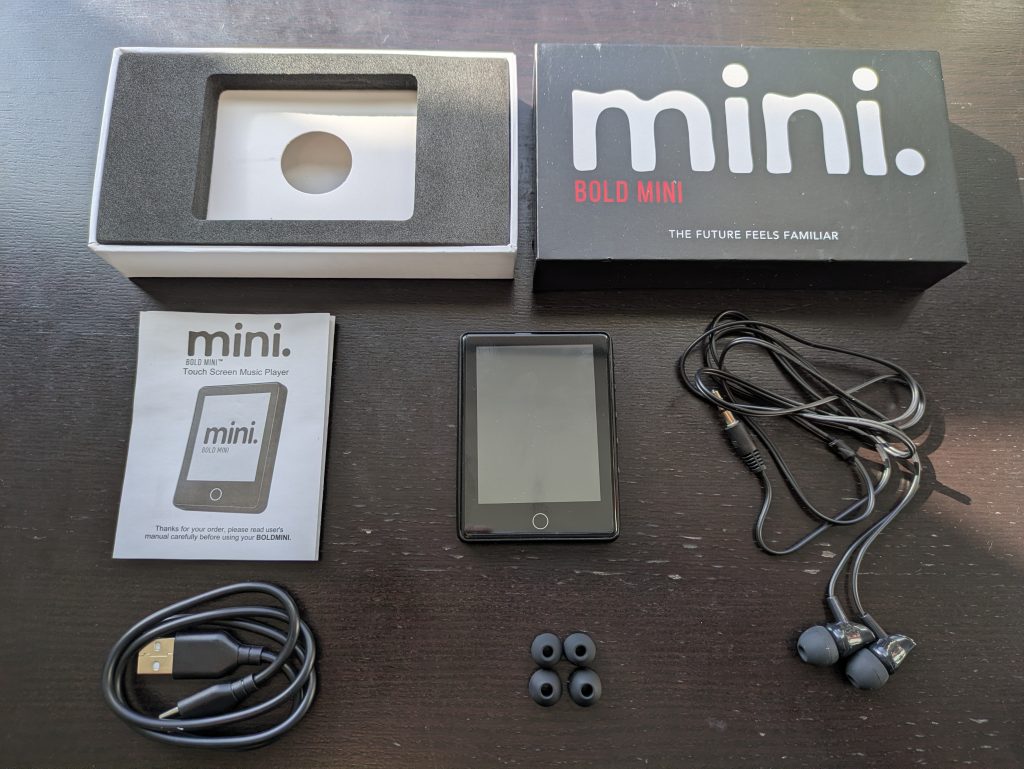
The BOLD MINI comes packaged in a cardboard box with a black top sleeve that pulls upward and off to reveal the inside. Once the top cover is removed, you’ll find the BOLD MINI housed in a protective foam frame, which you can see pictured above. Removing the device from the frame reveals a hole in the cardboard floor, which you can grab and pull upward to remove the top part and reveal the additional items included underneath.
The BOLD MINI comes packaged with:
- The BOLD MINI music player device itself
- Black earbuds with a standard 3.5mm jack
- 3 different sizes of ear cushions
- A USB-A to USB-C cable
- User manual
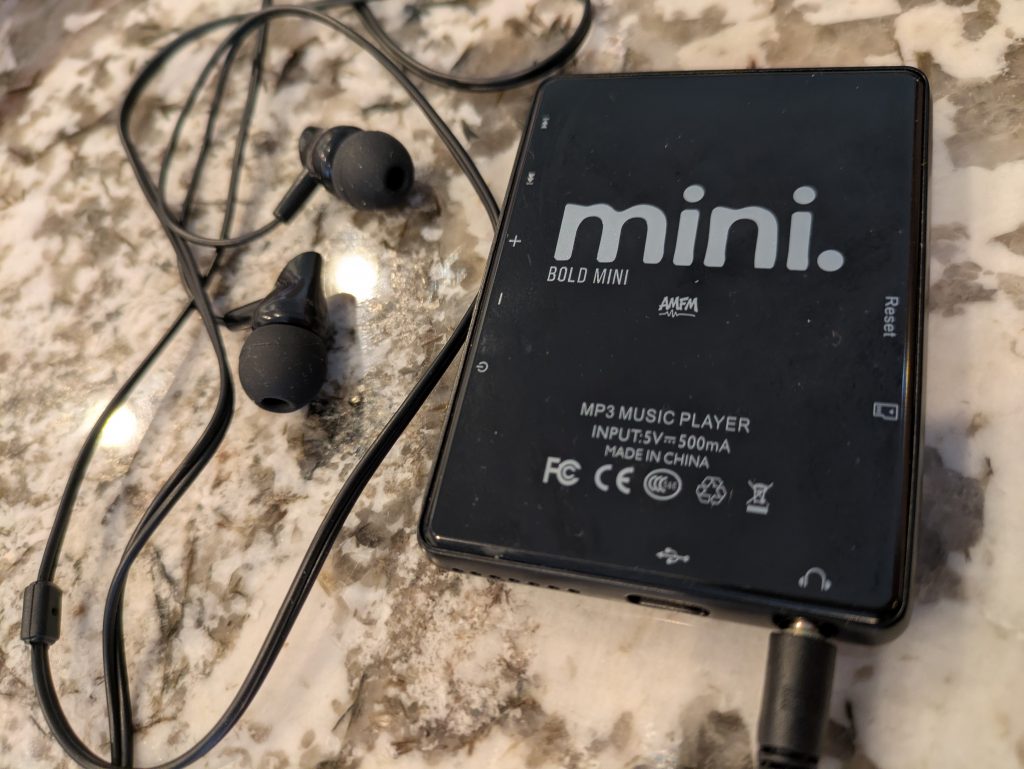
At first glance, you’d think that the buttons and ports on the sides and bottom of the device are unmarked, but flipping over the BOLD MINI to its rear side (shown below) reveals icons and text that will help you ascertain the function of each part.
To see and hear more about what comes inside the box, and to hear our first impressions, check out our Unboxing video on YouTube, embedded below.
The BOLD MINI review: testing out the device
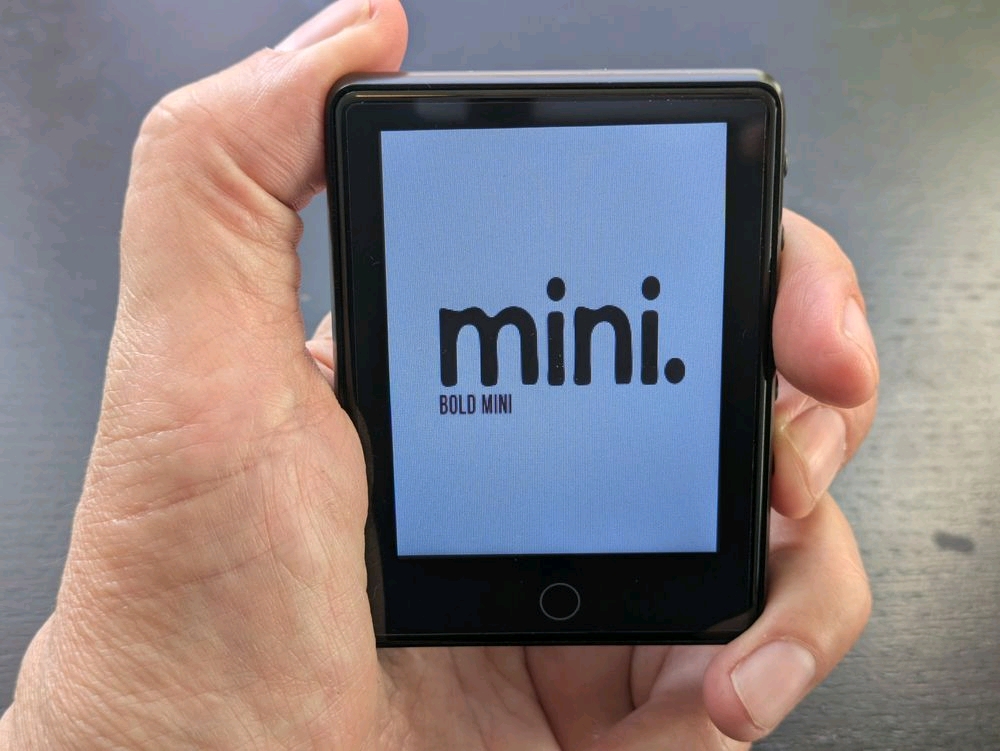
When you power on the device, by holding the bottom most button the right side, you’re greeted with a start up screen that reads “mini. BOLD MINI”, as shown below.
From there, you are taken to a home screen that contains 9 icons, as shown below. This screen is very reminiscent of a modern smartphone OS. Is the device actually running Linux under the hood here? That is very likely, but their documentation and product pages have no mention of the operating system in use.
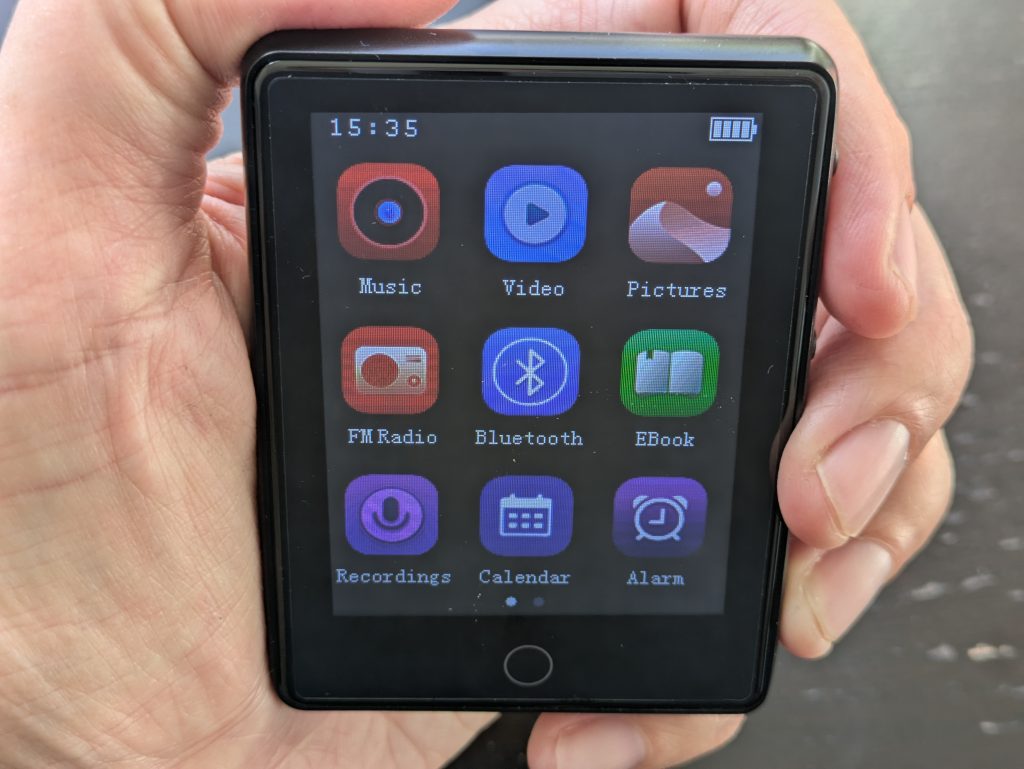
Looking near the bottom of the home screen, you can see two dots, with the left one highlighted and brighter, hinting that you can swipe left to move to another screen. You can indeed swipe and tap, as this is a touch screen device!
When you swipe to the left, you get another screen of icons with “Stopwatch”, “wallpaper”, “Folder view”, and “Set” (Settings) apps.
By default, after an inactivity period of 30 seconds, the “screensaver” will activate, which will show you a scenic image of a blue sky with mountains in the distance, a purple field in the foreground and a single green tree on the right. It overlays a clock, the day of the week, the date, and a “Swipe up to unlock” message at the bottom of the screen. The display will turn off completely after 10 seconds on the screensaver.
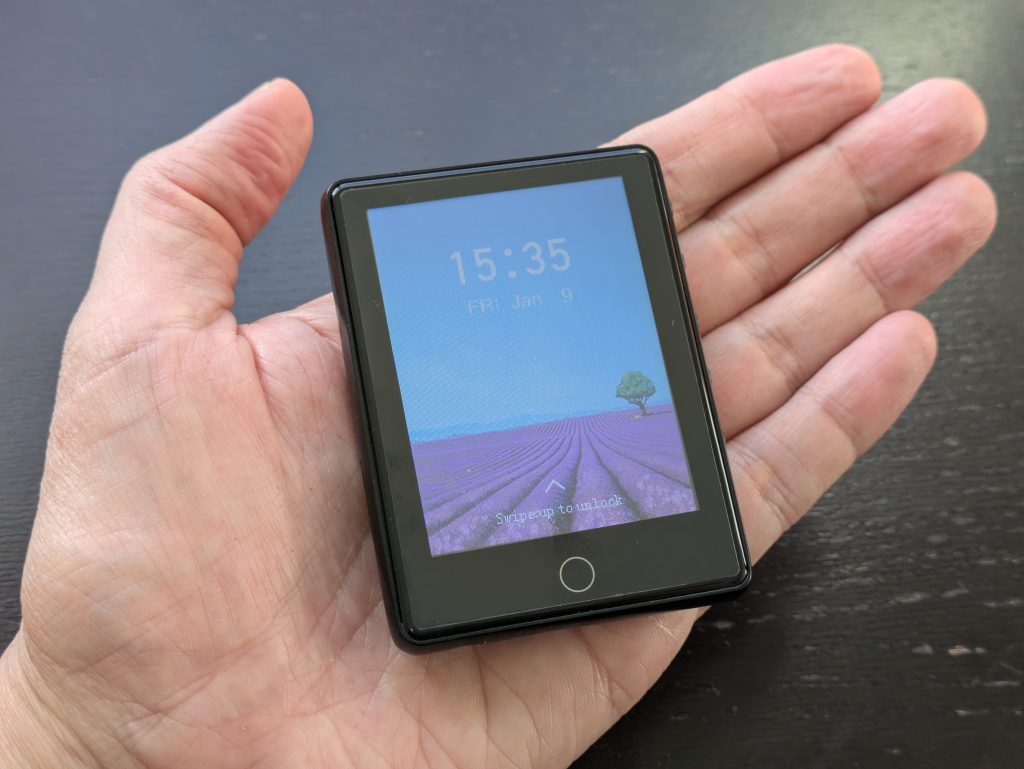
If you’d like to change the screensaver inactivity period, you can go into “Set” > Display settings > Backlight timer, and then choose between 10/20/30 seconds or “Always on”.
Sadly, tapping the screen after it has turned off does not activate it again. This foiled me again and again as I was testing out the BOLD MINI, as I’m accustomed to doing exactly that. You’ll need to press the power button each time to get the screen to turn on again.
For navigation within apps, you tap to go to different areas or to open new menus, similar to a smartphone. Once you’ve tapped on an app and opened it up, the majority of the time, you’ll see a curved arrow icon at the top left of the screen that you can tap to go back a screen, or to exit the app. You can always tap on the single circle button located at the bottom middle of the device, which will exit an app and take you to the home screen.
The BOLD MINI review: Demo content
Conveniently, the BOLD MINI comes pre-loaded with some demo content! I opened the Music app and tapped through the menus to discover 2 songs named “Test 1.mp3” and “Test 2.mp3”. I tapped on the “Test 1.mp3” file name to activate the music player and I immediately heard the audio start playing via the built in speaker, as I didn’t have the earbuds connected.
I was surprised to see the lyrics jump to life on the screen, with the Music app highlighting the proper words, karaoke style, as they were sung. Each line of lyrics will scroll up and disappear off the top of the screen as the song plays on.
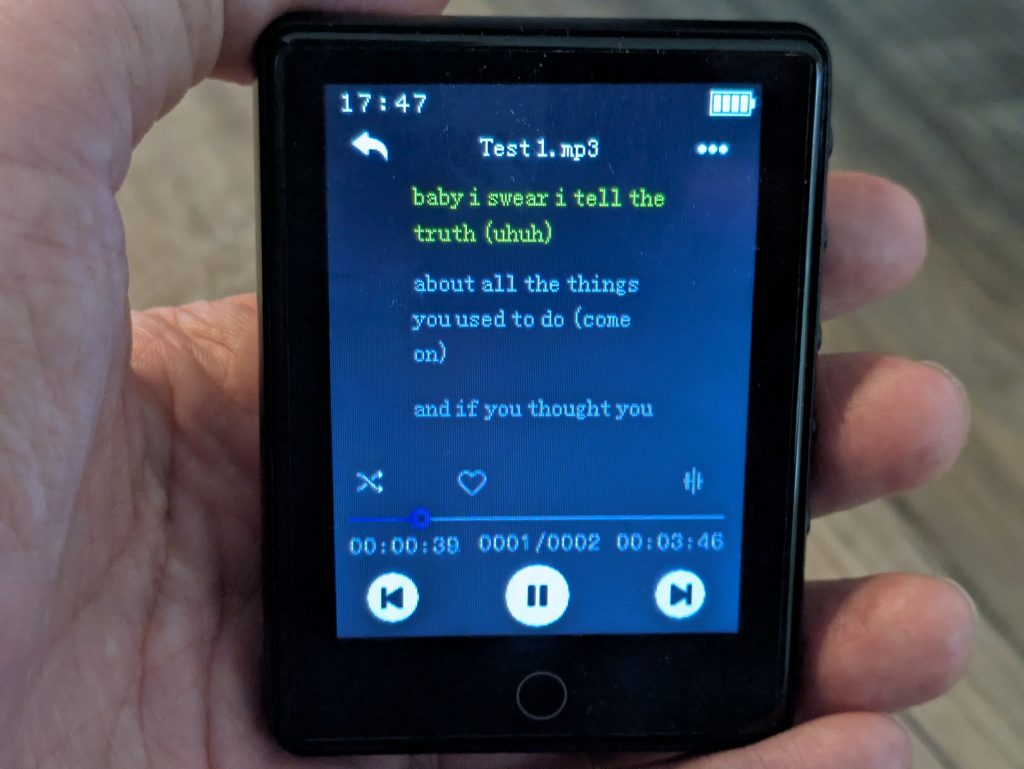
Using our “Now Playing” song identification app on our Pixel smartphone, we identified the two demo songs:
“Test 1.mp3” is All Rise, by Blue
“Test 2.mp3” is Yesterday Once More, by Carpenters
In the Video app, you’ll find an “ALL DX.avi” demo reel. Tapping on the video file name gets it to start playing, and you need to rotate the device a quarter turn counterclockwise to view it from the correct perspective.
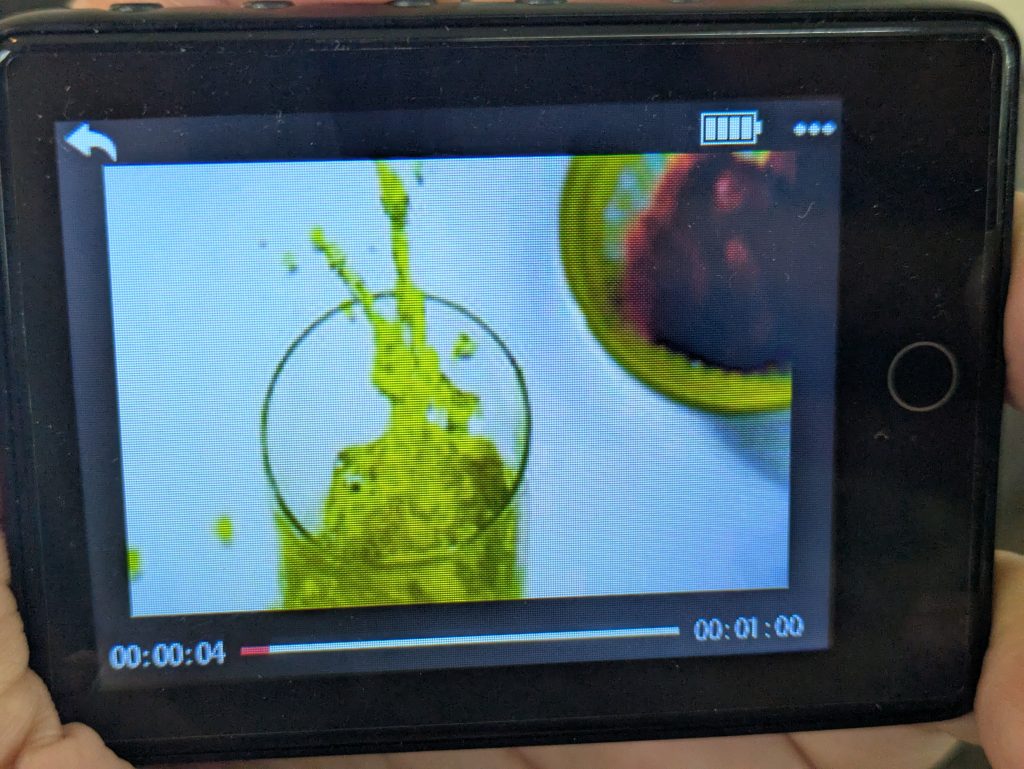
This demo video file plays a random assortment of clips that were edited together, including an ice cube dropping into a drink, drops of water falling on a snail, a frog leaping, a cork popping and more. Tapping the “+” button allows you to crank the volume up to “31”, which is where it maxes out. The rewind and fast forward buttons don’t seem to work while playing video.
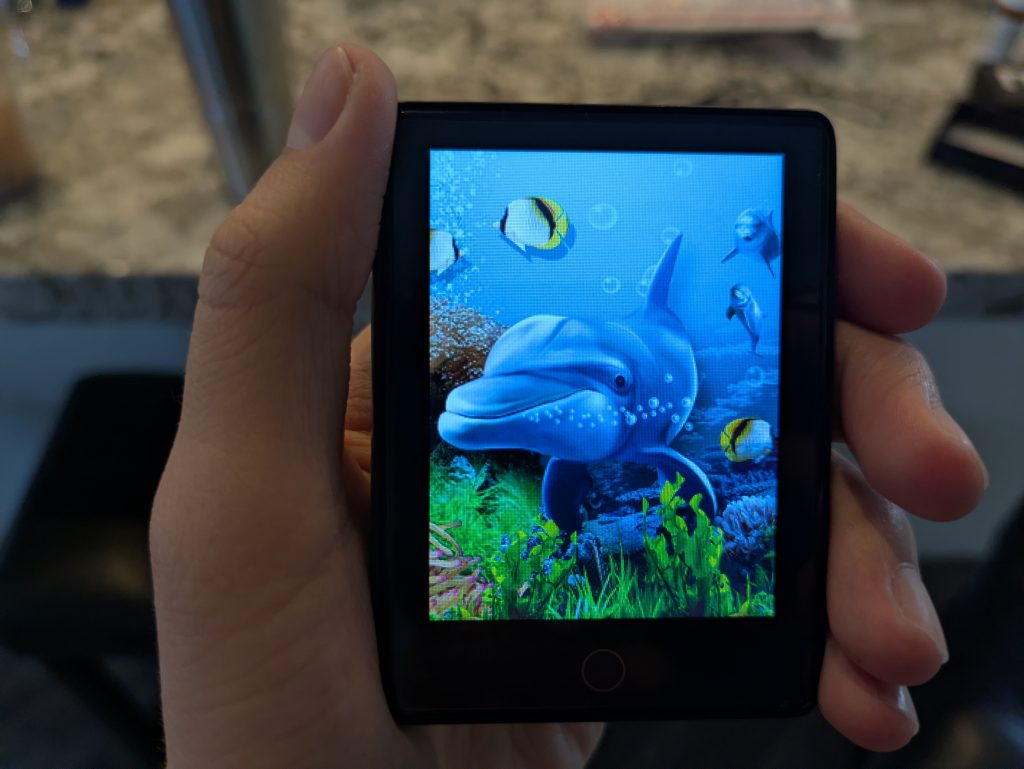
Opening up the “Pictures” app, we found “Test 1.bmp” (shown below) and “Test 2.bmp”. That second image depicts a still life of various fruit.
The BOLD MINI review: Radio functionality
WARNING: I found the audio volume for the radio output to be EXTREMELY LOUD. Start at volume level 1 (out of 31) when using the radio. Oddly, even though the BOLD MINI has a speaker, it will not output any radio audio over the speaker. Ear buds or another connected accessory is required to hear the radio.
We launched the “FM Radio” app to test out the BOLD MINI’s radio functionality and were greeted with a message to scan for stations. A brief message flashes across the screen, urging you to connect the ear buds to use as antenna for better reception, to help with the scanning process.
After the scan process completed, it auto-populated 30 different stations in the Stations list. Of course, that doesn’t mean that they will be stations that you enjoy, or that they will be interference free. For example, for me in the Salt Lake City area, it populated slot “03” with “FM 89.70”, and that station was very static-y for me.
You can repeat this process at any time using the “Auto tune” option from the main screen of the FM Radio app. Be aware that using the Auto tune functionality will cause all of your previously saved stations to be wiped out.
Below, you can view the Radio player interface, after you’ve tuned in to a particular station.
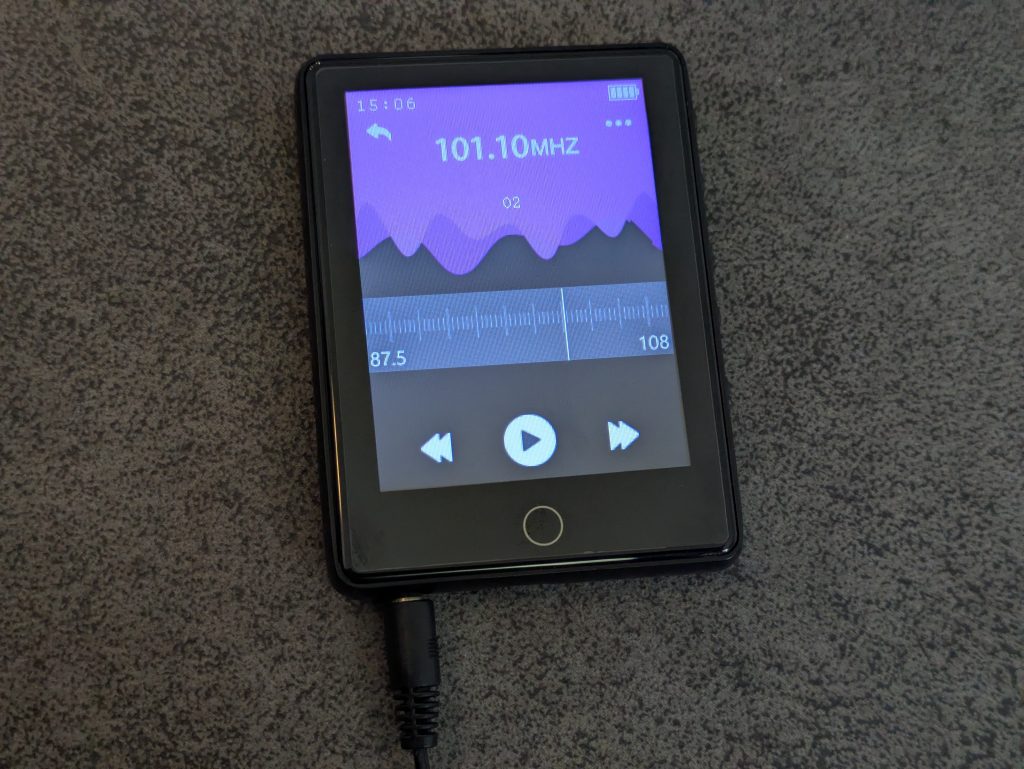
The buttons at the bottom of the radio play screen are a bit confusing. If you tap the play button in the center, it will jump to the next station in the list of stations saved on the device. If you tap the rewind or the forward buttons, it will do a “seek”, going to the next available frequency in the range. For example, if you’re on 92.50MHZ station and you click the rewind double-arrow left button at the bottom left, it’ll move you to 92.40.
Note: when exiting the app, either via the back arrow soft button at the top left of the interface or by pressing the home button, you’ll be prompted with a “Close radio engine?” screen. If you tap “No”, the radio station audio will continue playing, even though you’ve exited the “FM Radio” app.
The BOLD MINI review: recording radio
One of the unique features of the BOLD MINI is the ability to record from the radio! While listening to a station, you can tap the 3 horizontal dot menu at the top right, then tap the top menu list option “Start FMradio recording”. The recording screen will then display as shown below, and the seconds will tick upwards while the recording is in progress.
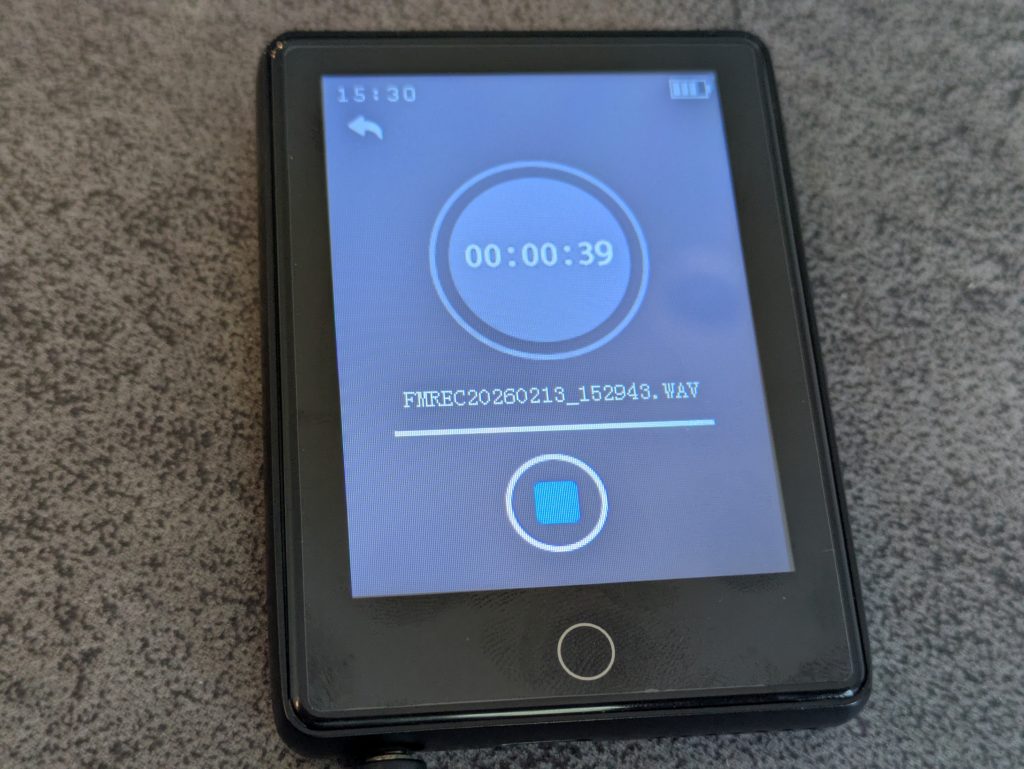
Once you’re ready to end the recording, you can tap the square icon near the bottom center.
Clicking the back arrow out of the recording screen prompts you with “Save recording?” with options for Yes or No. The recordings are saved in a WAV file format and are then accessible under the “FM Recording” option within the FM Radio app. I found it odd that a device billed as an MP3 player would save recordings in a WAV format, which produces much larger file sizes and eats up storage space much faster.
I couldn’t find a way to rename the recorded WAV file on the BOLD MINI, which is unfortunate. The auto-generated file names aren’t very helpful in identifying what you’ve recorded and what to listen to, especially when you have multiple recordings saved.
The BOLD MINI review: adding and playing new MP3 files
Naturally, one of the core goals of owning an MP3 player like this is to acquire more songs and then put them on the device. But, where does one even find MP3s these days? After some quick research, I discovered that Amazon Music offers downloadable MP3 file options for just about every song and album that they have for sale. As an example, I found the 12 song album “The Crux”, by Djo, available for $9.49 in downloadable MP3 format on Amazon Music.
I then went searching for “open source” and copyright free music, which brought me to pixabay, Open Music Archive and Free Music Archive (account sign up required). I downloaded at least one MP3 from each service to my laptop running Linux (Fedora 43) to prep them for the BOLD MINI.
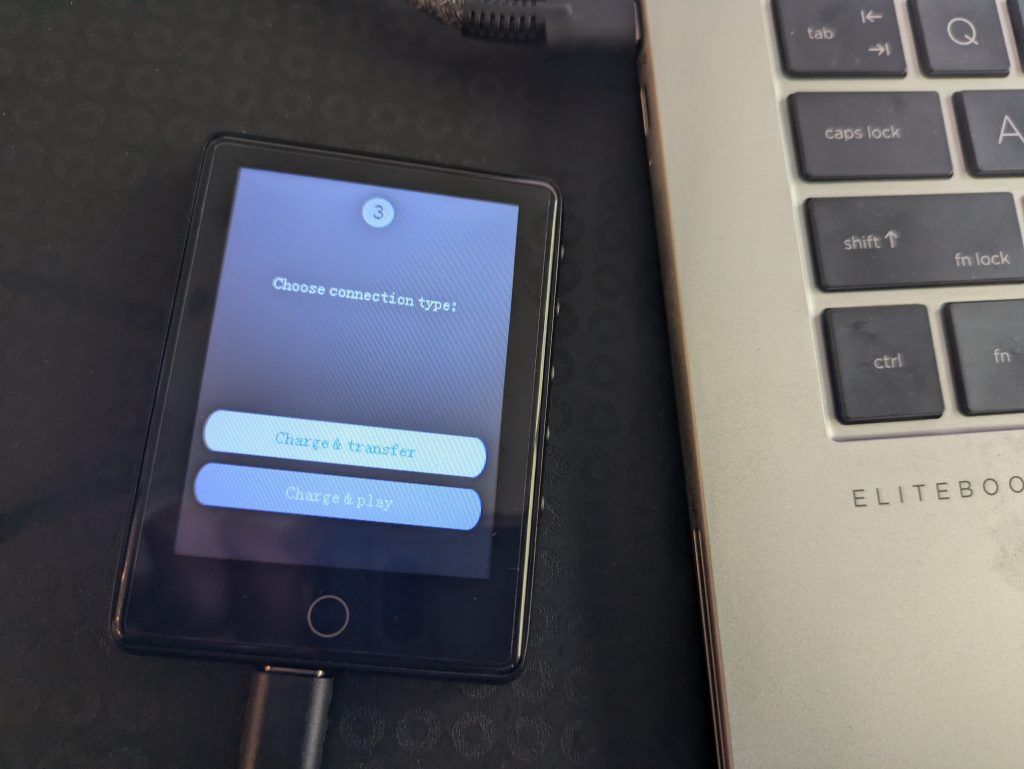
I connected the USB-C end of the included cable to the BOLD MINI, and then connected the other USB-A end to my laptop. This caused the BOLD MINI to present a screen for “Choose connection type:” with 2 option buttons presented. One for “Charge & transfer” and another one for “Charge & play”. This disappeared very quickly, after about 1 second, but it appeared to auto-select the “Charge & transfer” option because the devices file system started showing in my Files app.
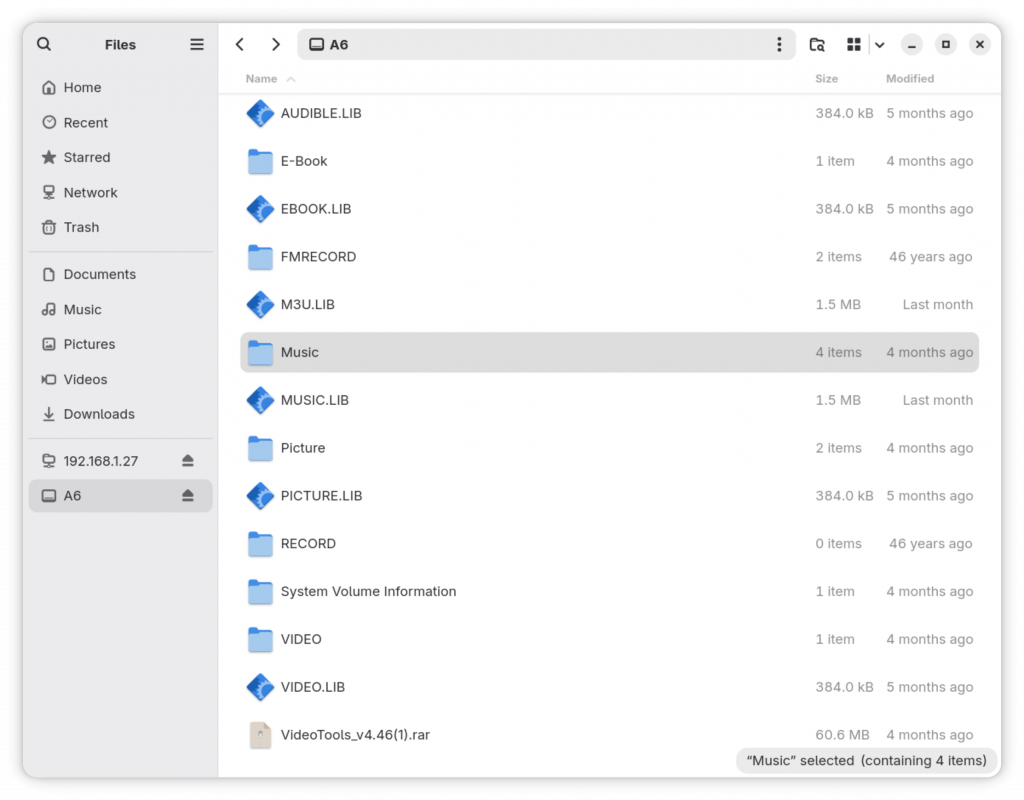
The BOLD MINI shows up as a device named “A6”, using a FAT file system, with 33.3GB in total size. Even with the demo content pre-loaded on the device, it’s using less than 1% of the total disk space, so there is a whole lotta room to grow! You can also check the device’s free disk space in the “Set” app > Information > Disk space.
The files and folders at the root of the file system are shown in the screenshot below. You can also view the file structure and files on disk from the BOLD MINI directly, by using the “Folder view” app.
Using the lsusb command, I found some additional information about the BOLD MINI hardware:/: Bus 003.Port 001: Dev 001, Class=root_hub, Driver=xhci_hcd/3p, 480M
ID 1d6b:0002 Linux Foundation 2.0 root hub
/sys/bus/usb/devices/usb3 /dev/bus/usb/003/001
|__ Port 001: Dev 009, If 0, Class=Mass Storage, Driver=usb-storage, 480M
ID 10d6:1101 Actions Semiconductor Co., Ltd D-Wave 2GB MP4 Player / AK1025 MP3/MP4 Player
/sys/bus/usb/devices/3-1 /dev/bus/usb/003/009
Back in the Files UI on my computer, I clicked into the “Music” directory, shown on the right side of the screenshot below and found our old friends “Test 1.mp3” and “Test 2.mp3”. I also spotted files for “Test 1.lrc” and “Test 2.lrc”, which I presume are lyric files.
Using drag & drop, I copied my 5 recently download MP3 files from my laptop drive over to the BOLD MINI’s storage, into the “Music” folder, as shown below. They transferred just about instantly.
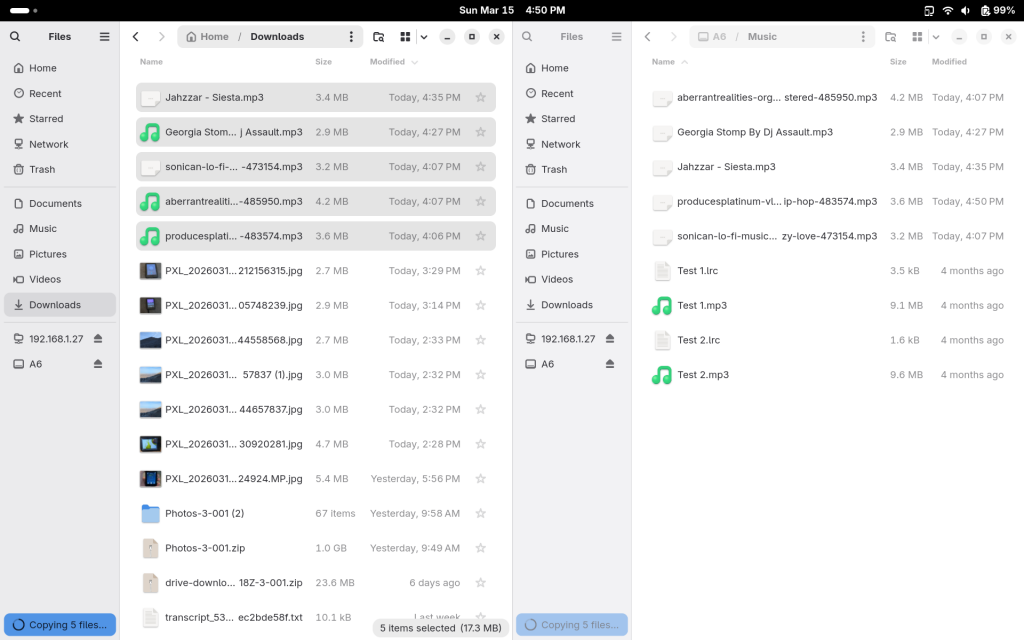
On the BOLD MINI file system, I created a “lofi” directory inside the “Music” directory, and moved the “sonican-lo-fi-music…” MP3 file into that sub-directory to test organizing files within directories. I then ejected the device, and removed the USB cable.
I pressed the power button on the BOLD MINI, opened up the Music app, and then tapped on the “Now playing list”, and was shown the screen pictured in the photo below.
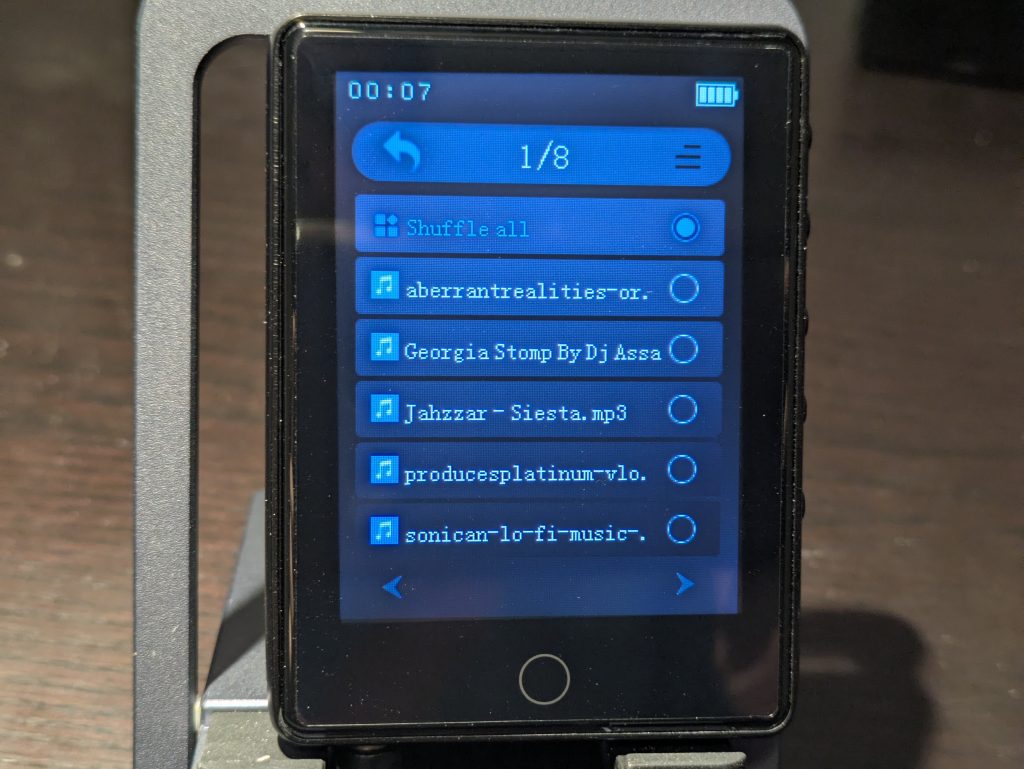
As you can see, the 5 new MP3 songs that I copied over to the device were detected and are now shown in the list. This screen previously said “1/3” at the top, prior to the new files being added.
I played through each of the songs to verify that the BOLD MINI could play them and that there were no issues. Everything worked without a hitch! The MP3 files I copied to the device were from 3 different sources, so this was a good rough test that it can handle a variety of MP3 files that were likely encoded with different types of software.
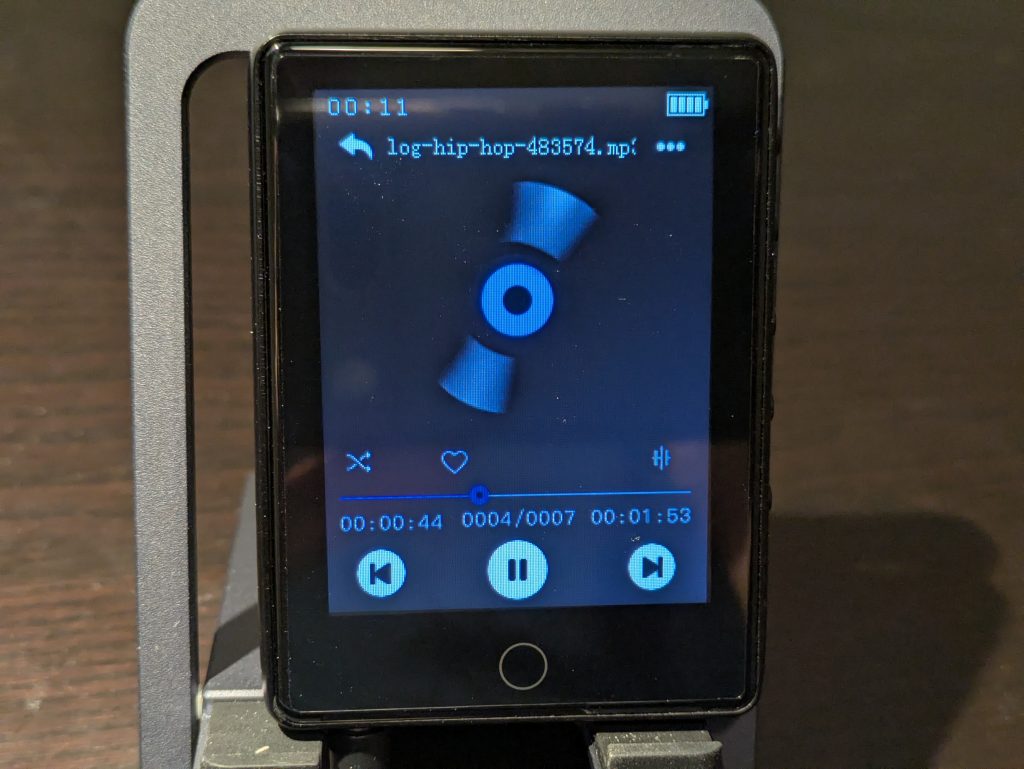
None of the MP3’s that I added showed lyrics on the screen when I played them, which suggests that you do need corresponding “.lrc” files, similar to what we see in the demo files.
But let’s not forget! I put one MP3 file in its own special directory, named “lofi”. That appeared to have zero effect on how the BOLD MINI detects, displays, and plays the MP3 file within it. The “lofi” folder name didn’t show up anywhere. Not in an album name, not in a different organization in the UI, nada.
I did have a few new items show up in the menus, however. From the main screen of the Music app, after clicking “Albums”, I now see the view as shown below.
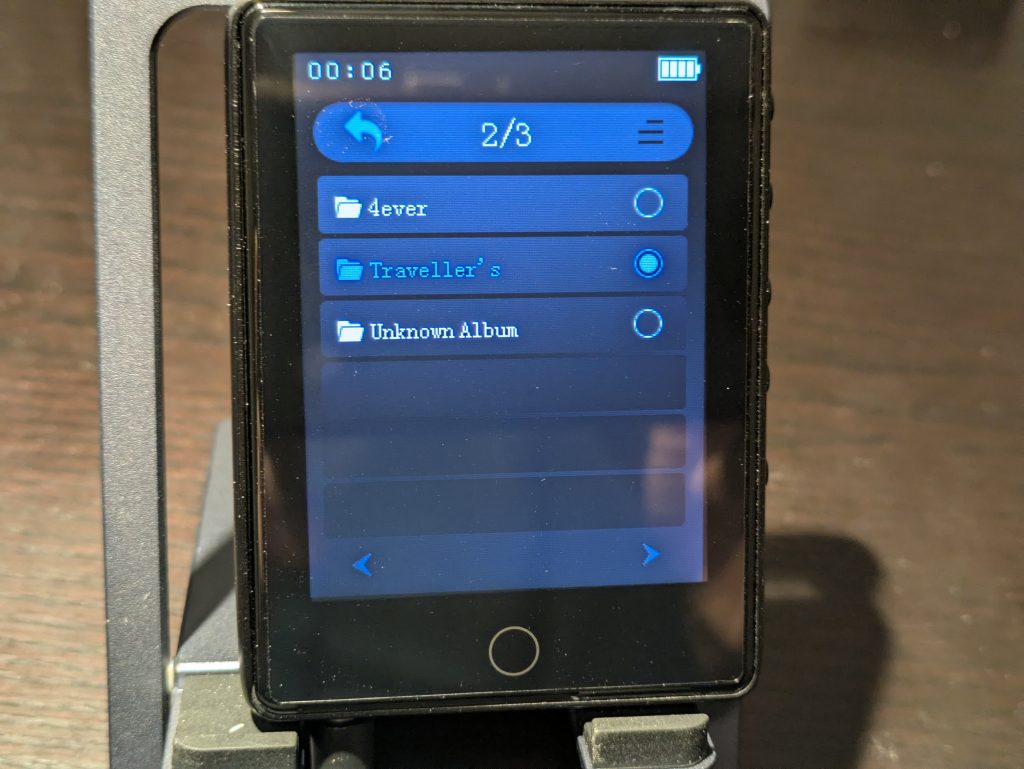
That first album “4ever”, is displayed due to one of the demo files, “Test 1.mp3”. The second album in the list, named “Traveller’s”, is new. This must be due to information embedded within the MP3 file. My new file, “Jahzzar – Siesta.mp3”, must have the “Traveller’s” album named embedded within its metadata.
The BOLD MINI review: conclusion
What a fun little device! The BOLD MINI handled every MP3 file that we threw at it, and it was fun to explore all of its capabilities and to use as a media player.
Cons
- Records radio as WAV files
- Screen doesn’t wake when you touch it
- Some of the UI/UX is confusing
- Can’t play radio on speaker
- Can’t rename recorded radio files
Pros
- Touch screen
- Quick, responsive interface
- Good battery life
- USB-C with quick charging
- Plenty of disk space for a large amount of song files
- Expandable storage via the microSD slot
- Played every MP3 I tried
- FM Radio
- View photos and videos
- Radio and voice recording
- Very loud volume via earbuds
- Built in speaker for media playback
If you’re looking for an offline MP3 player with modern hardware and a quick, responsive touchscreen interface, consider the BOLD MINI!
You can purchase the BOLD MINI for $59.99 on Amazon.